Pairing a Device to an AssetUpdated 2 months ago
Assets vs. Devices
An asset is the physical item you are protecting, whereas a device is an ASSURIoT tracker.
For example:
- Your car is an asset
- The tracker you hide in your car is a device
Two Ways to Register a Device to Your Account
Before you can use your ASSURIoT tracker/device, you'll need to register your unique device ID to your account. There are 2 ways to do this:
- From the "Devices" tab
- Select the "Devices" tab. It is the circular 2-device icon
 at the bottom of the screen.
 - Click "Add" in the top-right of the screen.
- Select the "Devices" tab. It is the circular 2-device icon
- From the "Add an Asset" page
- Follow the instructions for Adding an Asset
- Click "Add ASSURIoT Tracker"
- When selecting a device, click "Add New Device"
Registering Your Device
Step 1: Scan QR Code / Enter Device ID
After reaching the "Add a Device" screen using one of the methods above, follow the on-screen instructions to scan your device's QR code.
Your device may have 2 QR codes. Make sure you scan the larger QR code on the top-left of your device.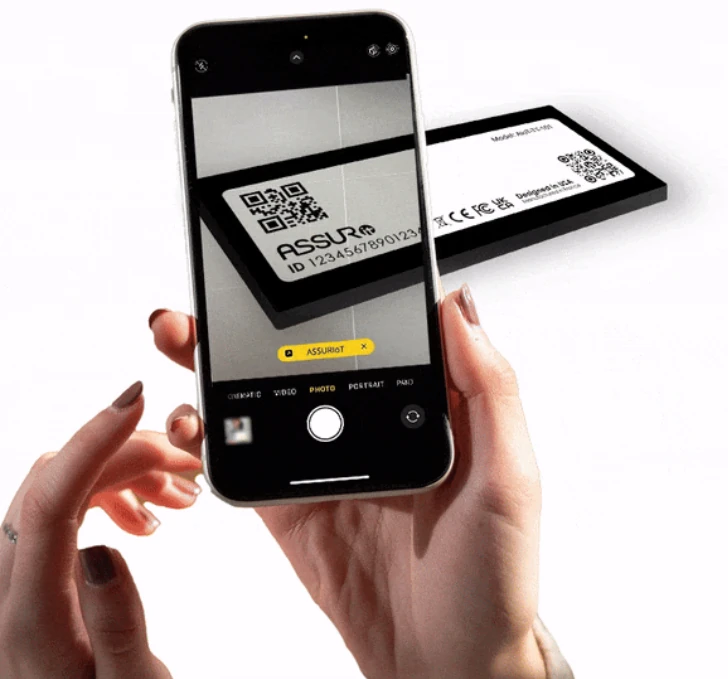
If you have any issues scanning the QR code, then you can enter the device ID manually. The ID is the 14-digit number located on the bottom-left of the device.
Step 2: Add Device Info
You'll be given the option to add a device name and description. Most people name their device based on the asset they'll be attaching it to.
Step 3: Attach to an Asset
Before clicking "Save," you can pair your new device to an asset by clicking "Attach to Asset" in the top-left.
If you've already created an asset without pairing a device, it will show up on the list here. Otherwise, you can click "Add new asset" to create a new asset.
Pairing an Existing Device to an Asset
- Select the "Assets" tab by clicking the circular asset icon
 at the bottom of the screen
 - Click on the asset you want to pair your device to on either the map or the asset list
- Scroll down on the asset card and click "Add Monitoring Device"
- Select your device
- Click "Attach Device"