Charging Your DeviceUpdated 2 months ago
Powering Your Wireless Charging Pad
ASSURIoT devices ship with a wireless charging pad and a USB-C cable.
Connect your wireless charging pad to a power source using the included cable. The charging pad's white indicator light will flash to let you know you have successfully plugged it in.
Your charging pad is now ready to begin charging your ASSURIoT devices.
Positioning Your Device on the Charging Pad
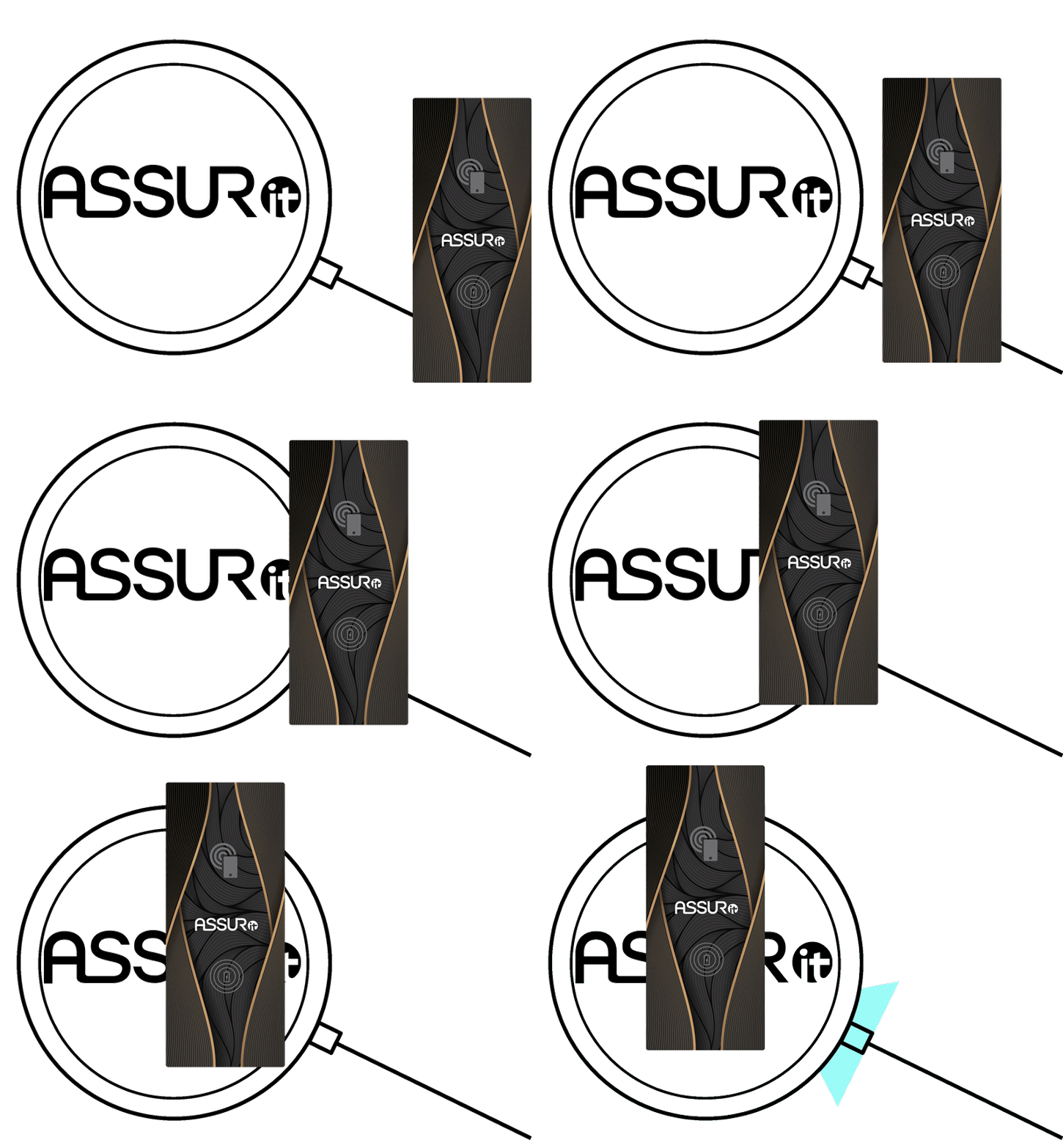 With your charging pad plugged into a power source, you're ready to begin charging your ASSURIoT devices.
If you place your ASSURIoT device in the center of your charging pad, it may not charge successfully. To successfully align your device on the charging pad, follow these steps:
- Place your device logo-side up. While it's resting on the charging pad, you should not be able to see the white sticker with QR codes.
- Locate the circular battery icon
 on your device. There are two circular icons; ignore the circular phone icon
 .
. - Align your device so that the circular battery iconis centered on the charging pad.
- The charging pad's white indicator light should turn on and stay on to let you know your device is charging successfully.
If your charging pad's white indicator light is off or flashing, your device is not charging. Make sure you're following the steps above, or contact us for assistance.
How Long to Charge Your Device
Please allow 2.5 hours for a full charge from empty.
Indicator Lights
The wireless charging pad has a single white indicator light to let you know your device's charging status. It can be on, off, or flashing. Here's what each of those patterns indicates:
- A solid white light indicates that your device is currently charging successfully.
- A flashing white light indicates that something has interrupted your charging link. This can occur when the device is bumped out of alignment or placed on the edge of the charging sweet spot. Please follow the instructions above to align your device logo-side up with the circular battery iconcentered on the wireless charging pad. If you believe your charging pad is defective, please contact us so that we can resolve the issue.
- No indicator light means either the charging pad isn't connected to a power source or your ASSURIoT device is misaligned. Check the cord to ensure it is securely connected. Please follow the instructions above to align your device logo-side up with the circular battery iconcentered on the wireless charging pad. If you believe your charging pad is defective, please contact us so that we can resolve the issue.
Charging Your Device After Applying Mounting Hardware
For your ASSURIoT device to charge, the device's back side (the white face with QR codes) must sit flush with the charging pad. If you attach mounting hardware to the side of your device with QR codes, then it will not be able to charge without removing the mounting hardware.
For this reason, we always recommend attaching your mounting hardware to the logo side of your device.
To locate the charging sweet spot on your device once the circular battery iconhas been covered by mounting hardware, follow these instructions:
- Pick a spot on your device that is 1/3 of the distance across its full length.
- Place this spot in the center of your wireless charging pad.
- If the white indicator light does not turn on, rotate the device 180º so the other side is centered on the charging pad.
- If your device is resting on the charging pad logo-side up, one of these orientations will turn on the indicator light to show that it is charging successfully.
- If necessary remove the mounting hardware, and if you need additional mounting hardware, please contact us so we can send you another mounting kit.
Using Your Own Wireless Charging Pad
Your ASSURIoT device is designed to work with the included charging pad. If you try to use another wireless charging pad, then the charging link might fail after a few minutes or seconds. If you need more wireless charging pads, please contact us so we can provide them to you.